

There's been a lot of excitement recently around building a 'Second Brain' using Claude and Obsidian.
Unfamilliar? Read my Claude Code or Obsidian Guides. Just make sure you come back and finish this article after :)
For those who missed it, this idea was popularised by Andrej Karpathy and involves building a Wikipedia-style set of interconnected notes which can then be navigated and searched by AI agents . This means that we don't have to provide AI agents the same context over and over again . With this system, it knows who you are , what you're working on, your preferences, and all of the ideas you've had. It can see how they link together, the connections between them, and any themes or commonalities between notes.
There's been a lot of discussion around the architecture and implementation of these second brain systems. I've been playing around with something similar myself over the past few months, and I've found it to be such a time saver.
However, one of the missing pieces from the conversation so far is what data should actually go into a second brain, and how we get it there.
Most of us aren't starting from a blank slate. We already have a reading list , a collection of saved articles, YouTube videos we've half-watched , GitHub repos we starred and never revisited, and a steady stream of new contentarriving every day.
The challenge isn't finding interesting things to read , but capturing them before they disappear into the void while making sure they actually end up somewhere useful and organisedas you do.
So here's my setup for quickly collating content and having it appear in my second brain with just 2 clicks. Oh, and it's saved me a ton in second-brain token usage too.
Making something I actually use
Content comes in many forms, and the number of different web pages, videos, social media posts, and PDFs you might want to collate is nearly endless.
I've designed this system with 2 guiding principles in mind:
Robustness. This needs to work for as many different content formats as possible. It can't break when it encounters something new, or I won't use it.
Minimal Effort. There should be as few steps and as little thought as possible between reading something interesting online and having it saved to your second brain. It shouldn't require excessive thought or effort, or you just won't use it.
Balancing these is tricky. We can make the system more automated, but we then increase the risk that it breaks when we encounter something new.
Similarly, we want to include as much metadata about each file as possible to make it easier to search, sort, and have AI retrieve from it later. But again, this comes at a cost, be that manual human effort or AI tokens. I went with the latter.
Claude usage quotas disappear faster than ever, and I don't want to waste mine on basic content tagging and summarisation tasks. That seems like using a nuclear reactor to toast a slice of bread. I went with a Gemini Flash model since it's super cheap, but a small model running locally in Ollama would be perfectly fine for a straightforward task like this too. If so, you'll definitely want to have this running overnight to avoide eating up your RAM throughout the day.
Ollama is a free tool that lets you run AI models on your own machine without sending data to any external API. (not sponsored)
2 Clicks.
Here's what the actual experience looks like. Say I've found an article on Hacker News (other websites are available) that I want to revisit later.
- Click the Web Clipper icon in my browser toolbar, and the extension opens.
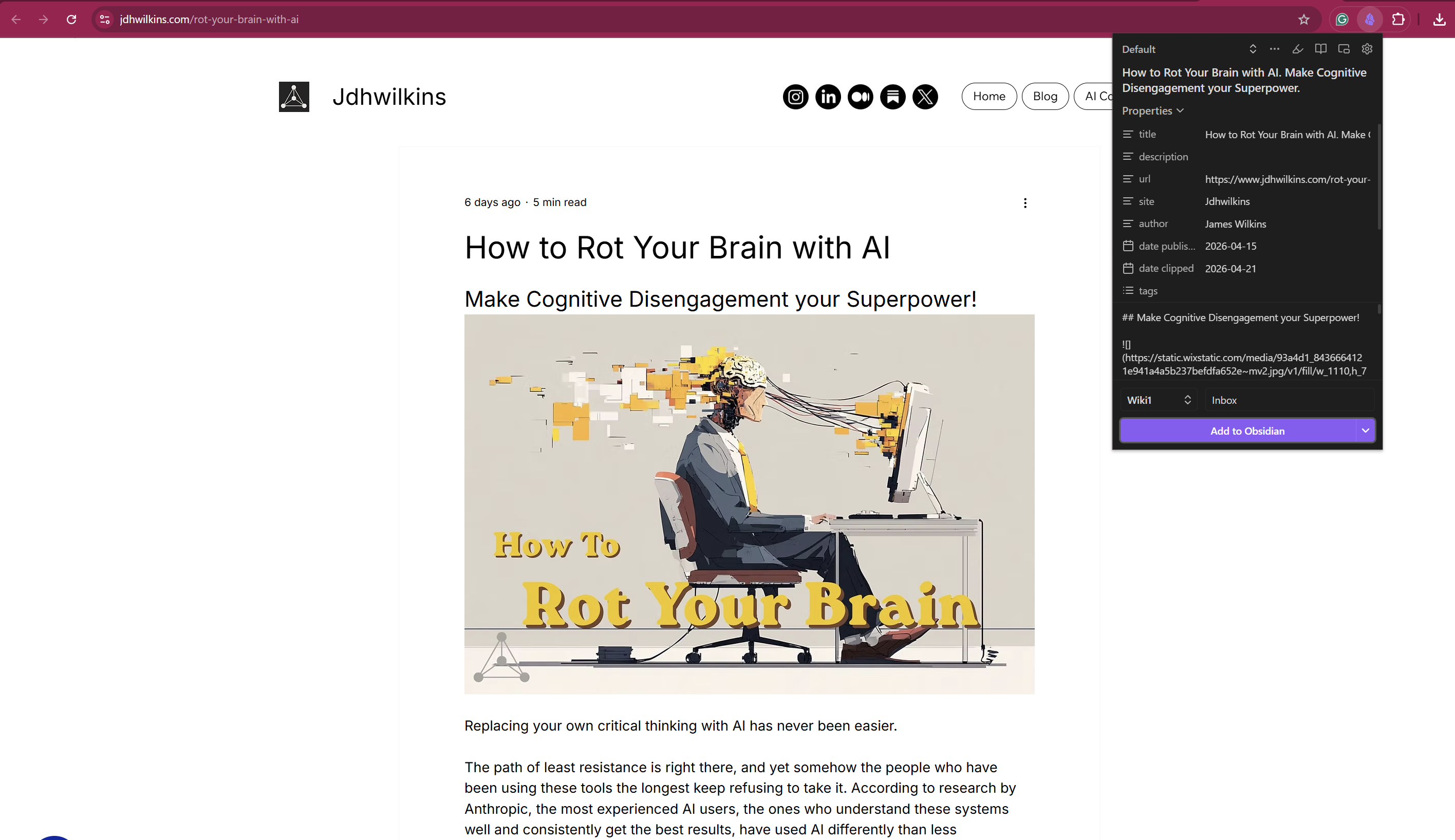
- It auto-selects a template for what data to collect. Because it's a standard article, it matches the default Article template. If it were a YouTube video, repo, or academic paper, it would switch automatically. You can also change it yourself if it doesn't pick it up.
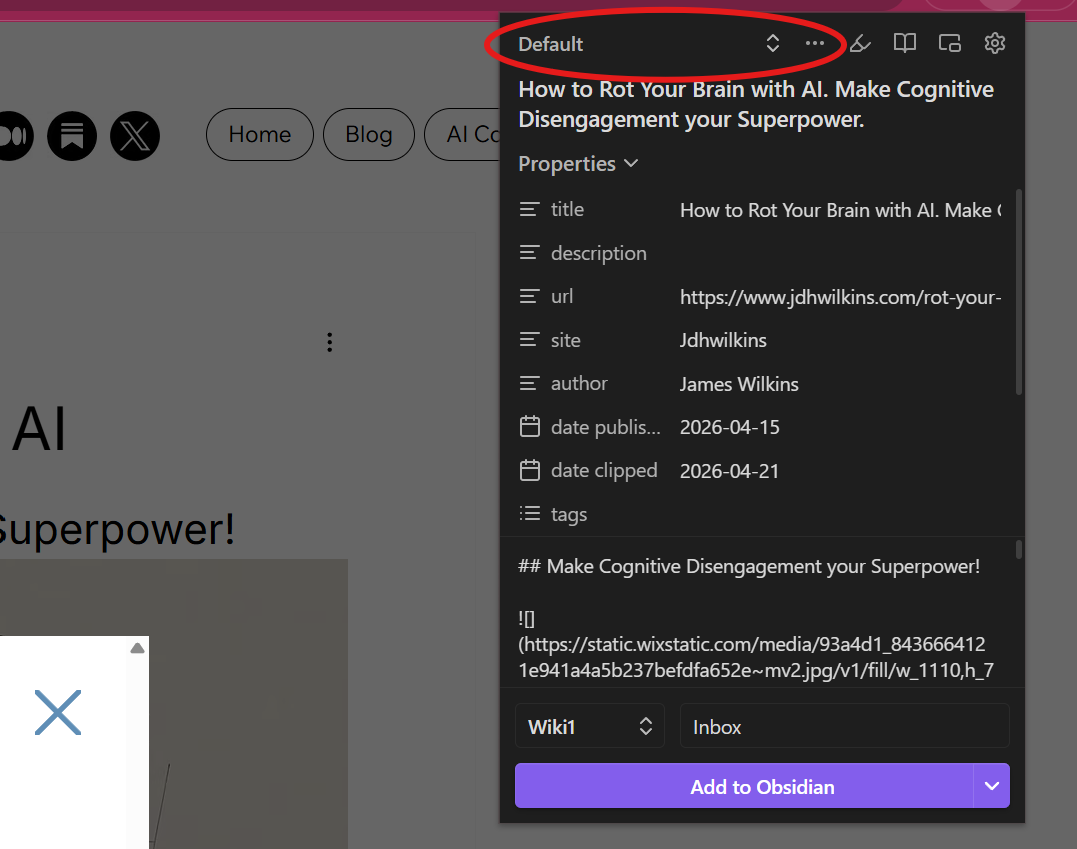
- Check the title and data, and click Save. I glance at the title to make sure it's sensible, then hit the save button.
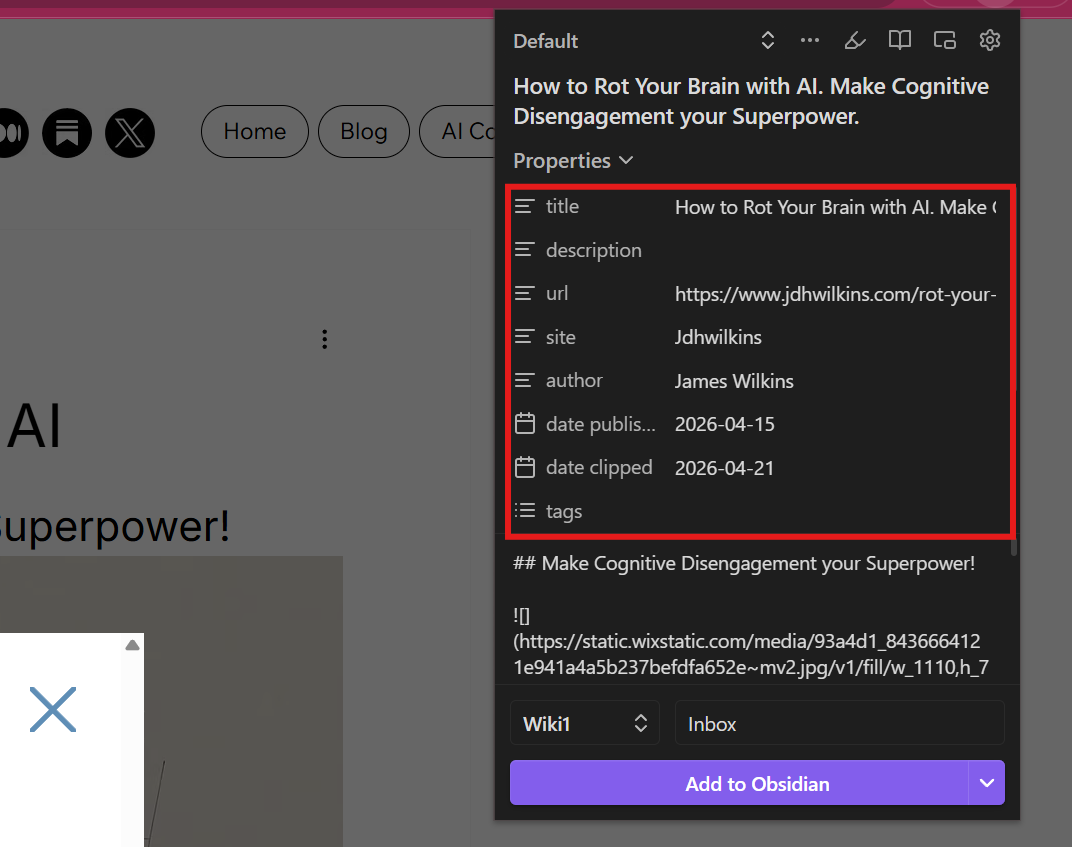
- Done. The note lands in my Inbox folder in Obsidian. All metadata included.
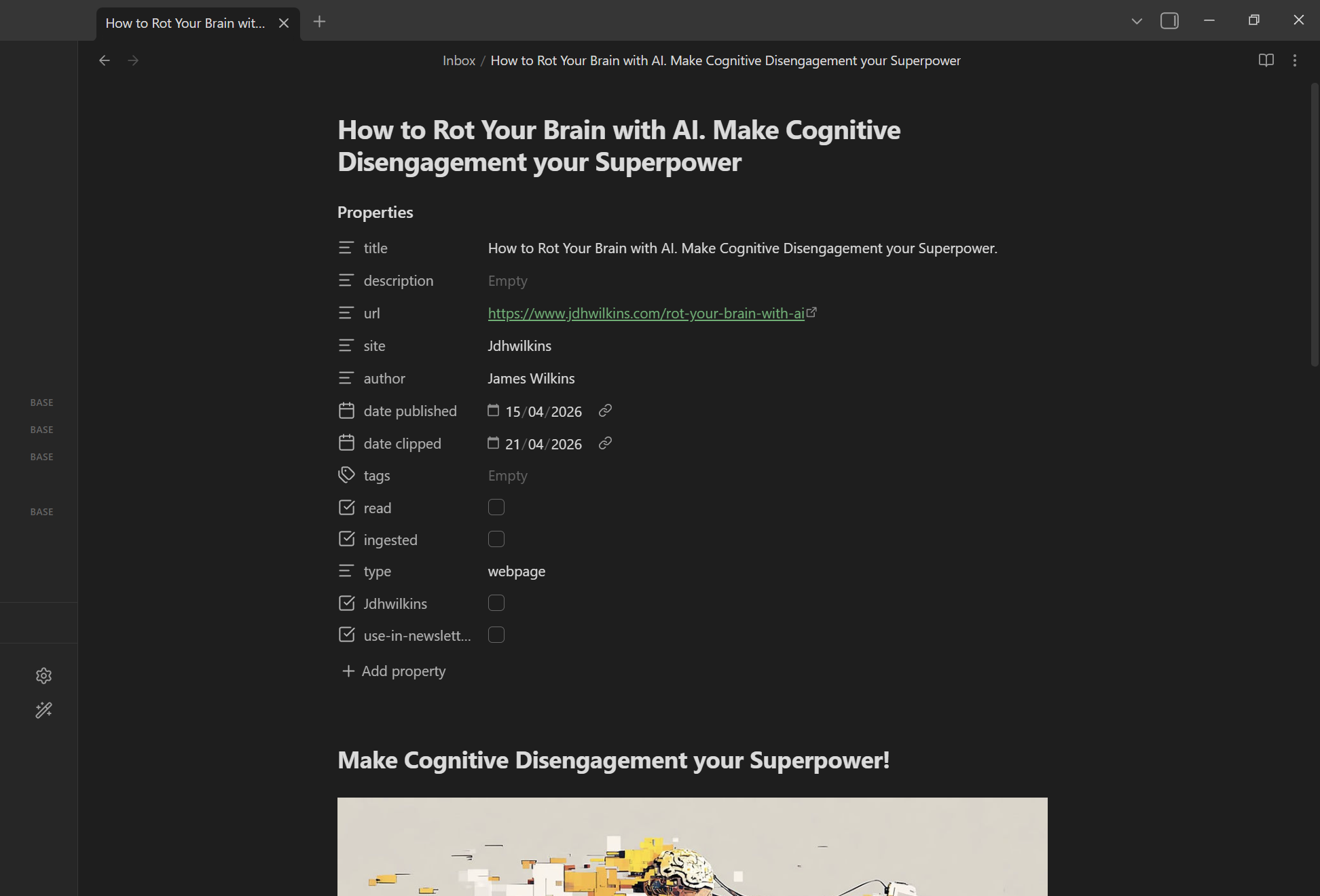
The whole system is two components working together.
The Obsidian Web Clipperis a browser extension that handles the capture - it converts any page into a structured markdown note and drops it straight into an inbox folder in your vault.
The ingest scriptis a Python script that runs in the background. Each night, it picks up everything in the 'Inbox' folder, gets Gemini to generate a summary and tags, and moves each note into the 'Wiki' folder. By the morning, the article is fully processed. It's searchable, tagged, and ready for Claude to refer to in my conversations.
The rest of this article covers how to set both of them up.
Obsidian Web Clipper
The Web Clipper is a browser extension that saves any page you're looking at directly into your Obsidian vault. Install it from the Chrome Web Store (or your browser's equivalent), point it at your vault, and set the default save folder.
Rather than saving a blob of HTML or a raw bookmark, the clipper converts the page into a structured markdown note with a full set of frontmatter properties, all populated automatically from the page's metadata. You create one template per content type, and the extension picks the right one based on URL triggers you define.
There are five templates in this setup. The core set of metadata we're recording stays the same between them, but we need to set it up to be able to find the right information on each given page type. We'll also need to set up some triggers to allow it to automatically choose the right template.
Open the web clipper extension, navigate to the settings menu. Here you can choose the vault and vault-folder to save to. Go to the templates section, where you'll then need to set up your properties in the default template, as shown below:
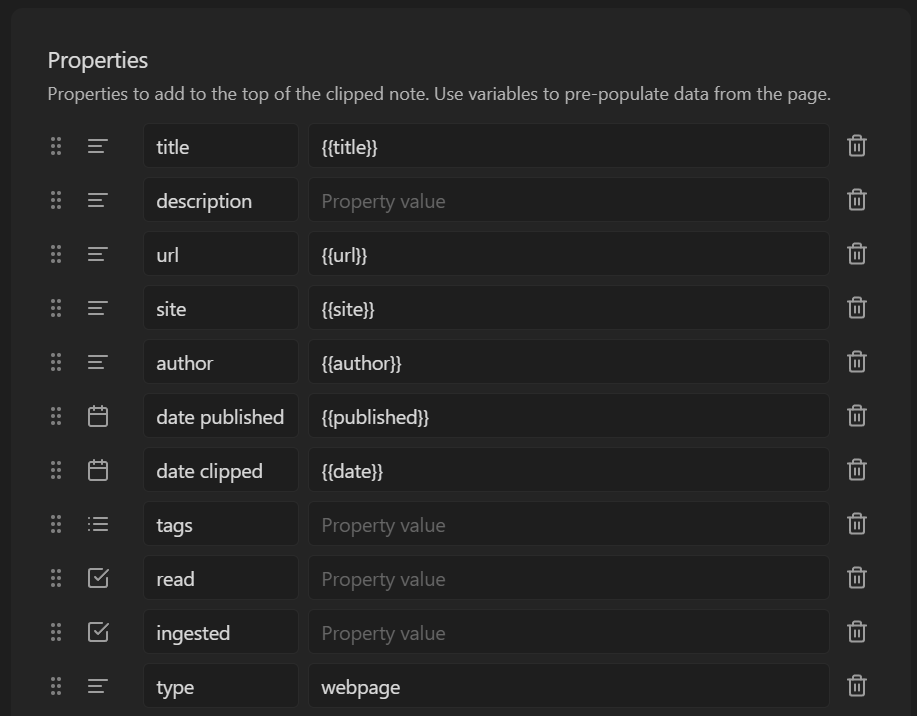
Leave the triggers section blank. For each of the following templates, you can now duplicate and edit the default one. As you add templates to the list, ensure that the default one stays at the top.
The 'ingested' checkbox is used by the AI routine to track which ones have a summary. The 'read' checkbox is for you to check things off your reading list. You could also set up the routine to only ingest content that you've read and decided to keep - it depends on how selective you want to be about what goes into the second brain.
PDF / Paper Template
This is triggered by academic sites like arXiv, PubMed, and Semantic Scholar. It captures the abstract and attempts to record the PDF URL so the ingest routine can download and convert the full document later. For arXiv, the PDF URL is parsed from the page automatically; for other sites, you may need to paste it in manually.
Triggers:
arxiv.org
pubmed.ncbi.nlm.nih.gov
semanticscholar.org
schema:@ScholarlyArticle
Properties:You will need to update the 'type' property to 'pdf' and create a new text property called 'pdf_url'. Set this to {{selector:a[href*="pdf"]?href|first}}
Video Template
This template is triggered by YouTube URLs. It pulls the full video transcript automatically, so you don't have to copy-paste it. Metadata comes from the page's structured data rather than generic meta tags, which is more reliable for video content.
Triggers:
youtube.com/watch
youtu.be
schema:@VideoObject
Properties:No changes to the properties other than changing the 'type' to 'video'.
Content:Update the content box to contain the following:
## About

## Description
{{schema:@VideoObject:description}}
## Transcript
{{transcript}}
GitHub Template
We can clip the README from any GitHub repo or gist to add to our reading list later. We need to do something a bit funky to get the repo owner since it isn't nicely stored in the page's metadata.
Triggers:
/^https.+github\.com\/[^/]+\/[^/]+/
Properties:Update the 'author' property to {{url|replace:"/\^https?:\/\/(?:gist\.)?github\.com\//":""|split:"/"|first}}. Change the 'type' to 'github'.
Social Post Template
We can also save social media posts to add to our reading list for later, too. We'll set it to be triggered on some common platforms, but play around with it and try adding some other ones.
Triggers:
x.com
twitter.com
reddit.com
linkedin.com
Properties:We only need to update the 'type' to 'social'.
Obsidian Setup and Plugins
Now, we should have all the content we could ever want appearing in Obsidian. Before we get onto the AI automation, there are a few additional settings and plugins you'll want to add in Obsidian to make this setup completely seamless.
Neither of the following community plugins is sponsored or affiliated in any way.
Templater
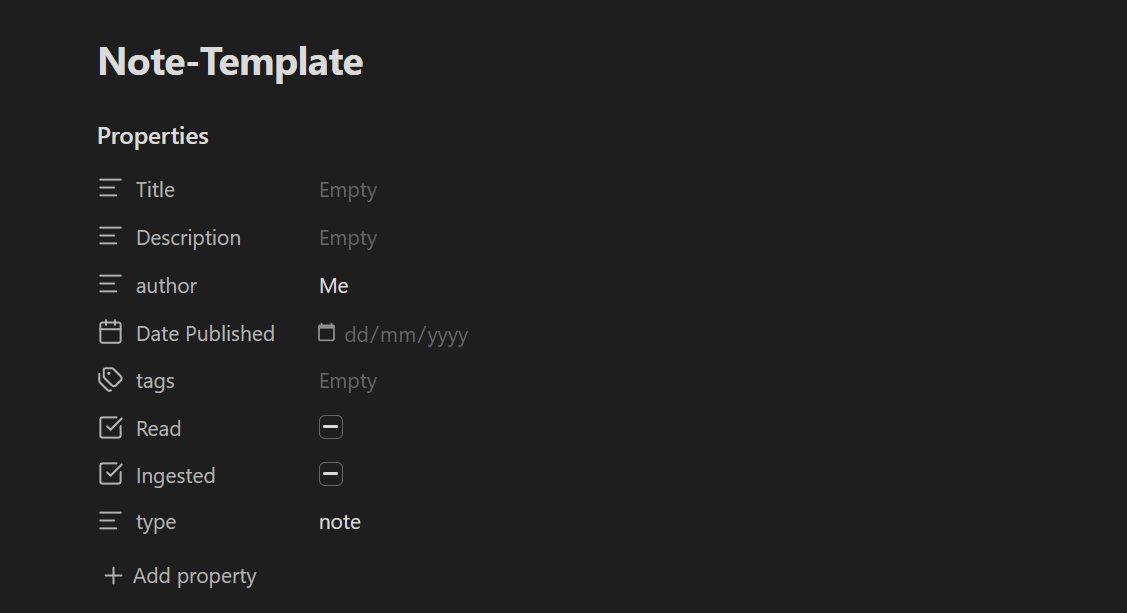
With Templater installed, you can set a default template that all new notes you create in your vault should take. This way, any notes you write yourself will automatically have the same frontmatter as anything you clip from the web.
You'll need to create a new 'Templates' folder in your vault and create a new file there.
Mine looks something like this, with all of the core fields necessary to be ingested into the system.
Local Image Plus
By default, Obsidian renders images by fetching them live from the URL, so they don't live locally on your machine. This plugin changes that by automatically downloading any media links and embedding them in the local note instead of the web link.
I find this super helpful when I want an AI agent managing my vault to be able to see an image, too. It also works better for offline access.
Settings
Settings > Files and Links > Attachment folder path. Change this to a new folder that you create. It's much easier to have all of the images you add to notes saved in a single folder.
Settings > Files and Links > Delete attachments when deleting files. Turn this one on - it'll help keep the vault clean.
AI Automation
This step is customisable depending on what features you want and how you want to use it. I haven't included the script directly. Since everyone's setup is a little different, you'll almost certainly want to tweak the logic to suit your own workflow. The steps I've outlined below make a solid brief to hand to an AI coding agent and have it build something for you.
Whatever features you settle on, you'll have a few things to decide:
Local model or web API? I personally opt for a Gemini Flash model since it's super cheap and going to be way faster and less demanding on your machine. If you're worried about API costs (maybe you have a LOT of long files to ingest), you might want to think about a local model like the Qwen 3 or Gemma 4 series, which would be perfectly suitable for a content tagging and summarisation task.
What to ingest? Do you want to process everything new? Just things you've read, ignore specific content types?
Links, tags, and summaries. I find summaries particularly useful since an agent can view the note metadata to quickly get an idea of what's in it without having to read the whole thing. Content tagging is useful to identify themes and categories common to different notes. You could also add direct Wikilinks from one ingested note to another. The only reason I don't is because of the larger overhead with an exercise like this. All three of these techniques integrate really well with Obsidian's built-in search features, which is honestly fantastic.
You'll want to make use of the Obsidian CLI for whatever automation you set up. It's a command-line tool that connects directly to your running Obsidian instance, letting scripts read, write, move, and search notes the same way Obsidian itself does.
Obsidian needs to be running for the CLI to be available, but it provides a much more efficient and far less fragile way to manage files than direct file operations.
Here's a summary of my setup:
1. Fetch all vault tags to ensure that the AI can reuse existing tags rather than create new subtle variations. This helps to dramatically reduce the amount of duplicate or near-duplicates introduced, keeping the whole setup clean. Tags are normalised to a lowercase-hyphenated format before being sent to the model.
2. Find all files in the Inbox using the Obsidian CLI. Personally, I process anything in my 'Inbox' folder, so my personal notes (in my 'Notes' directory) aren't ingested at all.
3. For each file, the script handles any PDFs by downloading and converting the full document (appending it below the clipped abstract), then checks whether the content is long enough to need summarising. Short posts get used as-is; longer content goes to the model for summarisation. A single API call returns a \~100-word summary and a list of tags. Tags are merged with anything already on the note, deduplicated, and normalised to lowercase-hyphenated format. The frontmatter is updated with the summary, tags, and Ingested: true, and the note is moved from Inbox/ to Wiki/ via the Obsidian CLI so any wikilinks stay intact.
I have this set up to run overnight, but I can trigger it manually to ingest any notes that I want to call upon right now.
Conclusion
The best system is one you actually use. I've tried plenty of note-taking setups that were technically impressive and practically abandoned within a week because they required too much manual effort to maintain.
The Web Clipper handles the capture in 2 clicks, Gemini handles the processing overnight, and Claude gets a second brain that grows on its own. I barely have to think about it anymore, which is exactly the point. My Claude-Obsidian second brain is free to grow without me having to micromanage it.
If you set this up, start simple. Get the Article template working first and clip a few things before you worry about the PDF pipeline or the video transcript setup. Once the basic loop is running, you'll quickly get a feel for what you actually want to add and where the rough edges are for your own browsing habits.