


Claude Code is an AI tool that runs in the terminal. For a lot of people, that sentence is enough to put them off. That would be a mistake.
While it may have been designed as a coding assistant, it's really just an agent capable of managing your files, using skills, and writing and running code (all by itself) to solve whatever problem you throw at it.
Claude Code is one of the more capable AI tools currently available, and you do not need a programming background to get real value from it. This guide covers everything from the basics of how it works through to its most advanced features, so you can decide how far you want to take it.
This is, however, not a setup guide. You can find one of those here.
What is Claude Code, and how is it different from a chatbot?
Most AI tools work like this: you ask a question, you get an answer, you copy it somewhere useful. Claude Code works differently. Rather than generating text for you to act on, it takes action directly on your computer.
It can read files; write, edit and run code; install software, and build things from scratch. You describe the goal in plain English; Claude figures out how to achieve it.
For users without the slightest knowledge or interest in coding, Claude Code can still be a really powerful tool for things like:
Summarising and reorganising a folder of documents or meeting notes
Pulling data from a website and structuring it into a spreadsheet
Generating a report by reading from Notion, Airtable, or your local files
Renaming and sorting large numbers of files according to your own rules
Building a simple internal tool or dashboard
The name may imply a coding assistant, but the actual scope is considerably wider.
The terminal is the text-based interface that Claude Code runs in. If you have never used it, the setup is simpler than it looks. Once installed, you type claude to open it and Ctrl+C twice to close it. After that, you just type what you want in plain English.
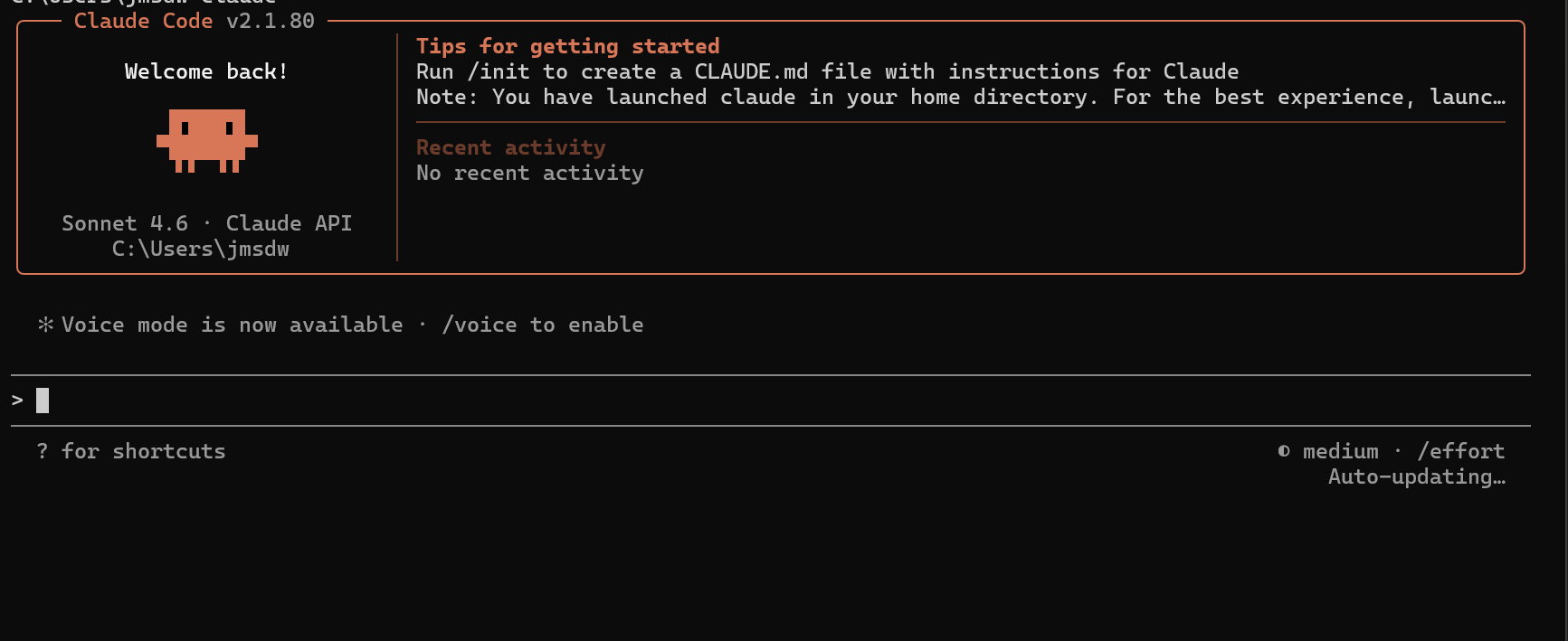
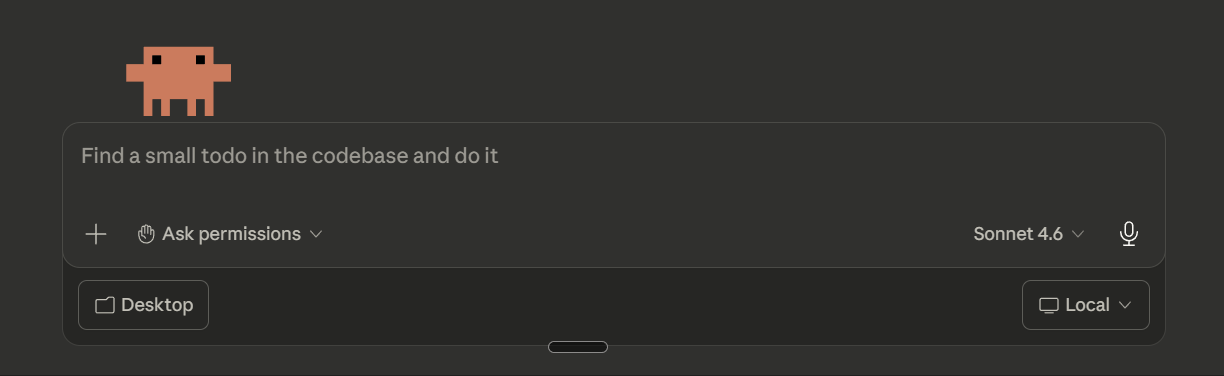
You can also use Claude Code through the Claude for Desktop application, which has a slightly simpler user interface.
Writing better prompts
A prompt is simply what you type to tell Claude Code what to do. The quality of what you get back depends heavily on the quality of what you put in.
Vague prompts produce vague results. "Build me a website" will get you something generic. "Build me a portfolio website with a dark background, a two-column layout, and a contact form at the bottom" will get you something useful. The more specific you are about the outcome, the better Claude can deliver it.
You can learn more about writing better prompts here.
Once Claude understands the context of your project, shorter follow-up prompts work well. Clarity matters more than length.
You are always in control
Claude Code does not act without permission. Before it takes a significant action, such as installing a package, calling an external service, or deleting a file, it stops and asks you to approve it first.
You can configure this behaviour in a file called 'settings.local.json'.
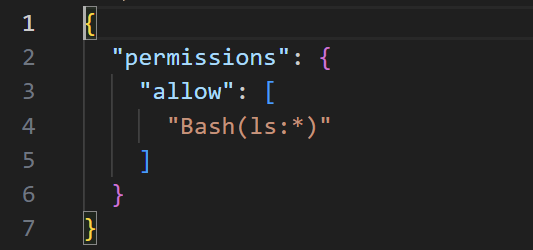
Low-risk, routine actions like reading files or running tests can be pre-approved, so Claude does not have to pause and check every time. More consequential actions stay gated behind your approval. You can also specify a deny list: files that Claude is never permitted to read, regardless of what it is working on. This is useful for keeping credentials and environment variables completely off-limits.
You don't need to edit this file yourself. You can just ask Claude to do it for you:
What permissions do you have enabled?
Can you add permission to do X to your settings file?
How Claude thinks
Claude Code has a set of built-in tools it can draw on: reading files to understand your project, writing and editing files directly, and running terminal commands. You describe the goal; Claude combines the tools as needed.
Alongside these tools, Claude has a context window which functions as its working memory for the current conversation. Everything in that window is what Claude can see: your messages, its own responses, and the contents of any files it has read. Once the window fills up, outputs can start to degrade as earlier information gets pushed out or summarised.
You can manage this with two commands. /clear starts a completely fresh session. /compact is more surgical: it summarises what has happened so far and clears the noise while keeping what matters. Claude will also trigger this automatically when the context window reaches around 85--95% capacity, and when you run it manually, you can append instructions about what to prioritise or preserve. Sessions are saved automatically, so you can type claude --resume to pick up exactly where you left off, or browse previous sessions and jump back into any of them.
Usage is measured in tokens, roughly three-quarters of a word each. Every prompt, response, and file read costs tokens. You can track your spending at any time with /cost.
A full explanation of how context windows and tokens work, including how they affect AI tools more broadly, is available in Context Windows and Tokens: What They Are and Why They Matter
Choosing the right model
Claude Code uses a family of models you can switch between mid-conversation using /model:
Haiku -- fastest and cheapest, good for simpler or repetitive tasks
Sonnet -- the balanced all-rounder and the sensible default for most work
Opus -- the most capable, but also the most expensive
Most work lands naturally on Sonnet. Opus is worth reserving for genuinely complex problems where the extra capability justifies the cost.
Making Claude remember your preferences
Claude Code has two systems for carrying information across sessions, and they serve different purposes.
CLAUDE.md is a markdown file located inside your project folder (and created automatically when you run the /init command. More on commands later.). Claude reads it at the start of every session. Use it to describe the project structure, set rules, or provide context that Claude would otherwise have to re-learn each time.
The memory system is automatic and works across all your projects. Claude picks up on patterns over time: your preferred working style, the language you use, the way you like things formatted. It stores them as preferences that it applies in future sessions. You can ask Claude to add, change, or review what it has remembered at any point.
Together, these two systems mean you spend far less time re-explaining yourself every time you start a new session.
The difference between CLAUDE.md and memory is scope. CLAUDE.md is project-specific and intentional; memory is automatic and applies everywhere.
Shortcuts and customisation
Claude Code comes with built-in slash commands that trigger specific actions. /init sets up a new project, /compact manages the context window, and /help lists everything available. You can also create your own custom slash commands for tasks you repeat often.
Skills are pre-written instruction sets that load specialist knowledge into the conversation when triggered. If you want Claude to follow a specific workflow, write in a particular style, or produce a consistent kind of output, a skill can encode all of that and activate automatically. You can learn how to develop your own skills here .
Hooks are background scripts that run when specific events happen. You might set one up to auto-format a file every time Claude saves it, or to log every command Claude runs. They execute without using AI tokens.
Flags are options you set when launching Claude Code. They control which model is used, which tools Claude has access to, and how much autonomy it has in a given session. For example, --verbose shows what Claude is doing in detail, and --model lets you specify a model from the start.
Claude Code also has extended thinking built in. Rather than jumping straight to a response, Claude is given a dedicated budget of reasoning tokens to work through complex problems step by step before it acts. It is on by default, and it makes a noticeable difference in tasks that involve multiple dependencies or complex decisions.
Keeping track of your work
Before every file edit, Claude creates a checkpoint - an automatic snapshot of the current state. If something goes wrong, you can use /redo to see a list of previous states and restore any of them.
Claude Code also connects to Git, which underpins the checkpoint system and enables broader version control. You can review changes before committing, work across separate branches, and collaborate without overwriting each other's work.
Connecting to the wider world
MCP servers (Model Context Protocol) extend Claude Code beyond your local machine. They allow Claude to connect to external platforms, such as Notion, Airtable, or Asana, and take actions within them: pulling data, pushing updates, or triggering workflows. The connection is configured once and then available across sessions.
You can learn more about MCP servers here.
Claude Code also supports images. You can paste a screenshot or design reference directly into the conversation. This is useful for showing a bug visually or giving Claude a design to work from.
Picking up a session from another device
Remote Control lets you connect to a Claude Code session running on your machine from any other device. Start a task at your desk, then monitor or continue it from your phone or a browser somewhere else. The session keeps running locally the entire time.
To start one, run claude remote-control from your project directory. Claude Code generates a session URL and a QR code you can scan to connect from the Claude mobile app. Your local files, MCP connections, and project configuration all stay on your machine; the remote interface is just a window into the local session.
This is particularly useful for longer-running tasks. You can kick off something that will take a while, step away from your desk, and check in on progress without the session ending or anything being sent to the cloud.
Remote Control is available on all plans. On Team and Enterprise accounts it is off by default until an admin enables it.
Going autonomous
For larger or more complex work, Claude Code supports patterns that reduce the need for step-by-step human involvement.
Sub agents are separate Claude instances that run in their own isolated context. The main Claude session delegates a task, the sub agent handles it independently, and returns the result. This keeps the main conversation clean and allows multiple tasks to run in parallel without interfering with each other.
Agent teams take this further. Where sub-agents only communicate back to the main session, agents in a team can talk directly to each other and share a task list. This is useful for large builds where different parts of the work are genuinely independent: one agent on the backend, another on the frontend, a third running tests. Each works in its own context without interrupting the others, and the whole thing moves considerably faster than a single agent working through the same tasks in sequence.
Work trees let you create isolated working directories, each on its own Git branch, using the --worktree flag. Multiple Claude instances can work on different features simultaneously and merge back when done.
Headless mode, activated with the -p flag, runs Claude Code with no human interaction at all. No approvals, no conversation -- just a fully autonomous loop from prompt to output. Combined with --allowed-tools to define what Claude can access, this is useful for scripted or scheduled tasks where you want Claude to run unattended.
What this adds up to
Claude Code is a substantial step beyond a chat interface. At its most basic, it turns plain English into actions on your computer. At its most advanced, it coordinates multiple agents working in parallel on different parts of a project.
The best part is you can use as many or as few of these features as you feel comfortable. Even without these extra tools, Claude Code is still an exceptionally powerful tool.
For a deeper look at how to write effective prompts, a skill that carries across every AI tool, You're Using ChatGPT Wrong: Here's How to Prompt Like a Pro covers the underlying ideas in detail. And if the context window section above sparked questions, Context Windows and Tokens goes much further into how that works.