

With the building a Second Brian boom, a lot of people have started opening Obsidian for the first time recently. If that is you, welcome. The app is free for personal use, but it has a learning curve that is steeper than most note-taking tools, and the documentation assumes a level of familiarity that can make the first few hours genuinely bewildering.
This guide covers the foundations: what Obsidian is, why people use it, and the core concepts you need to understand before you start building anything inside it. None of it is particularly complicated. It just helps to have it explained plainly before you encounter it in the wild.
This is a companion article for 'Building a Second Brain with Claude Code and Obsidian'. This is for people who are new to the app and want to understand what they are actually working with.
Disclosure: I have no affiliation with Obsidian and am not sponsored by them in any way. I just use it every day and think it is genuinely worth your time.
What is Obsidian?
Obsidian is a note-taking application that stores all your notes as plain text files on your own computer. You write in Markdown (a simple formatting system where bold gives you bold and # Heading gives you a heading), and those notes are saved to a folder on your hard drive. It's worth becoming more familiar with markdown if you're not already; it's quickly becoming the unofficial language of AI.
What makes Obsidian different from something like Notion or Evernote is not some special AI feature or clever interface. It is the fact that your notes are just files. Ordinary files, sitting in a folder, that you can open in any text editor if you wanted to.
The app also lets you link notes to each other, visualise those connections on a graph, and build a personal knowledge base that grows over time. People use it for research, writing, journalling, project management, and, increasingly, as the human-facing side of AI workflows.
What is a vault?
The first thing Obsidian asks you to do when you open it is create or open a vault. This trips people up because it sounds more complicated than it is.
A vault is just a folder on your computer. Obsidian treats whatever folder you point it at as a self-contained workspace, reading all the Markdown files inside it and making them available to search, link, and navigate. When you "create a vault", you are creating a folder and telling Obsidian to use it. When you "open a vault", you are pointing Obsidian at a folder that already exists.
You can have more than one vault. Some people keep everything in a single vault; others have separate ones for work and personal notes, or for distinct projects. There is no right answer. A single vault is simpler to manage and means your notes can link to each other across topics, which is usually the better starting point.
Why it works well for atomic notes
"Atomic notes" is a term you will encounter quickly if you spend any time in the Obsidian community. It comes from a note-taking method called Zettelkasten, developed by the German sociologist Niklas Luhmann, who used it to write an enormous amount over his career. The idea is simple: one idea per note, written in your own words, linked to related ideas rather than buried in a folder hierarchy.
Obsidian suits this approach because linking is easy. You create a link between notes by wrapping the note title in double square brackets, like this: [[The nature of atomic notes]]. That is all there is to it. A note on Zettelkasten might link to atomic notes, which links to evergreen notes, which links back to your notes on a book you read three years ago. Over time, those connections create a web of thinking you can navigate and build on.
The alternative, which most people start with, is a folder full of long documents where ideas get buried and lost. Atomic notes are shorter, more reusable, and easier to connect. They are also easier to find later, because you are looking for a specific idea rather than remembering which document you put it in.
A word on the graph view
Obsidian has a graph view: a visual map of your notes and the links between them. It is the thing you have almost certainly seen in screenshots, usually a dense, glowing web of hundreds of interconnected nodes that looks like something from a science fiction film.
Yours will not look like that for a while, and that is fine.
A new vault with 20 notes produces a graph with 20 dots and a handful of lines. It is not impressive to look at. The elaborate graphs you see online belong to vaults built over years with thousands of notes and deliberate linking habits. They are a byproduct of sustained use, not something you design upfront.
Here is mine after two months of working on a project vault:
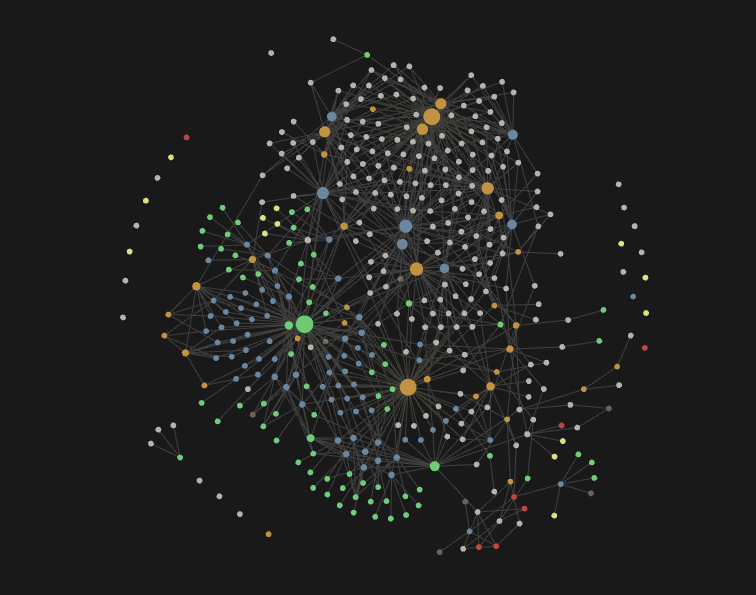
Getting there. Not a mega-brain monstrosity yet. The graph becomes genuinely useful once your vault has enough notes that you need a visual way to spot clusters and gaps; before that, it is mostly decorative. Write notes, link them as you go, and let the graph take care of itself.
You own your files
Most cloud-based note-taking apps store your data on their servers. When you write a note in Notion, that note lives in Notion's database. If Notion changes its pricing, shuts down, or changes its export options, you are at the mercy of those decisions. Getting your data out is possible, but rarely clean.
With Obsidian, the files live on your computer. Every note you write is a plain text file in a folder you control. You can back it up, move it, open it in another application, or migrate to a different tool entirely without asking anyone's permission. If Obsidian, the company, disappeared tomorrow, your notes would still be there.
This is not a hypothetical concern. Several popular note-taking apps have shut down or changed their terms significantly over the past decade. Writing in a format you own is a reasonable thing to want.
No proprietary format
Relatedly, Obsidian uses Markdown, a format that is not owned by anyone and that any decent text editor can open. Your notes are .md files. If you open one in Notepad, it looks exactly like what you wrote, with a few formatting symbols mixed in.
Compare this to a format like .docx, which is technically open but practically tied to Microsoft Word, or to a proprietary app format that cannot be read by anything else. Markdown has been around since 2004 and is widely supported. Anything you write in it today will still be readable in 20 years.
The practical consequence is that you can edit your Obsidian notes with other tools, run scripts against them, search them from the command line if you were so inclined, and include them in version control (more on that below).
Backup options
Because your notes are files, backing them up is straightforward. A few options worth knowing about:
iCloud, Dropbox, or OneDrive will sync your vault folder automatically if you put it inside their monitored directories. This works well and requires no configuration inside Obsidian itself. The vault is just a folder; any file sync service will handle it.
Obsidian Sync is the official paid sync service (about £8 a month). It handles sync across devices, version history, and end-to-end encryption. It is the simplest option if you work across multiple computers or phones, because it is built for Obsidian specifically and handles conflicts gracefully.
Git is worth mentioning for anyone comfortable with version control. You can initialise a git repository inside your vault folder and commit your notes regularly, giving you a full history of every change you have ever made. There is a popular community plugin called Git that automates commits on a timer. This is the most thorough backup option and doubles as a way to sync between devices via GitHub or a similar host.
Manual backup also works. Copy the vault folder to an external drive or another location. It is low-tech, but it is reliable, and there is nothing wrong with it as a supplement to whichever other method you choose.
The important thing is to have at least one backup that lives somewhere other than your main computer. The vault is just a folder; treat it like one.
Frontmatter
At the top of many Obsidian notes you will find a properties panel that looks like this:
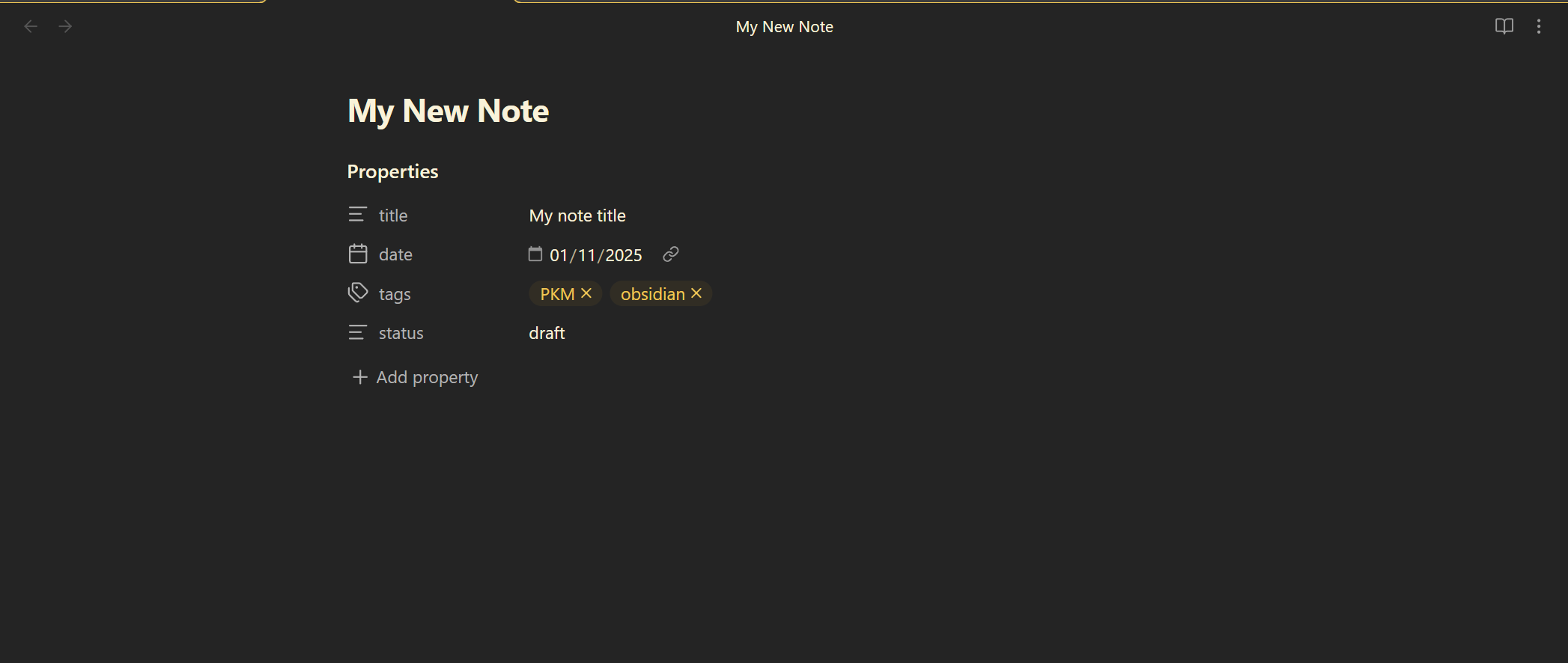
This is frontmatter. It's structured metadata stored at the top of the file that describes the note rather than containing its content. The fields you see in that panel (title, date, tags, status) are things you define. Obsidian renders them as a clean UI, but behind the scenes it is storing them as plain text in a format called YAML, which looks like this:
---
title: My note title
date: 2025-11-01
tags:
  - PKM
  - obsidian
status: draft
---
You do not need to know anything about YAML to use frontmatter. The Properties panel handles it for you. The reason it is worth knowing the underlying format exists is that other tools, including community plugins and the Obsidian CLI (see more below) read it directly.
Frontmatter is optional, but it quickly becomes useful. You can use it to tag notes by topic, record when something was written, track the status of a project, store a source URL, or add any other property that helps you find and filter notes later. Obsidian's built-in search and its Properties panel both read frontmatter, and many community plugins depend on it to do their work.
You do not need to fill in front matter on every note. Start with what you will actually use. Tags and a date are enough for most people to get started.
Folders inside Obsidian
Obsidian shows you the folder structure of your vault in a sidebar on the left. Because your vault is a real folder on your hard drive, organising notes into subfolders works exactly as you would expect. You create a folder, you drag notes into it, and they move.
People have strong opinions about folder structures in Obsidian, and you will find elaborate systems with acronyms and hierarchies if you go looking. The honest answer is that the right structure is whatever you will actually maintain.
A few principles that hold up in practice:
Keep the folder structure shallow. Deep nesting makes things harder to find, not easier. Three levels is usually enough.
Use folders for broad categories that will not change much. A folder for work, one for personal notes, one for reference material, one for writing projects. The fine-grained organisation can happen through tags and links rather than folders.
Do not optimise the structure too early. The urge to spend a weekend designing the perfect system before writing a single note is strong and usually counterproductive. Write notes first, then see what groupings emerge naturally.
One popular starting point is the PARA method (Projects, Areas, Resources, Archives), developed by Tiago Forte. It is a sensible default if you want somewhere to begin without overthinking it. There are Obsidian templates built around it that you can download and adapt.
Plugins and the community plugin ecosystem
Obsidian ships with a set of core plugins that cover the basics such as a daily notes creator, a tag pane, a canvas view, templates, and a few others. These are maintained by the Obsidian team and are toggled on or off in settings. Most people enable a handful and leave the rest.
The more interesting half is community plugins. Obsidian has an active open-source community that has built hundreds of plugins extending what the app can do, and you can browse and install them directly from inside the app. Go to Settings, then Community Plugins, turn off safe mode, and you get access to a searchable directory.
The Dataview plugin lets you query your vault like a database. If every note has frontmatter with a status or a date, Dataview can generate live lists and tables based on those properties. Useful for tracking projects, reading lists, or anything where you want a filtered view across many notes.
Templater is a more capable alternative to the built-in Templates core plugin. It lets you create note templates with dynamic content, so a new meeting note can automatically fill in today's date, prompt you for an attendee list, and drop a standard set of headings in one keystroke.
The Git plugin automates version control for your vault, committing your changes on a timer to a repository. If you want a full history of everything you have ever written and a way to sync across devices without paying for Obsidian Sync, this is the approach.
Excalidraw embeds a drawing canvas inside a note, which sounds niche but turns out to be genuinely useful for mapping out ideas that are hard to express in prose.
None of these are essential when you are starting out. The point is that the app is extensible in ways that most note-taking tools are not, and the community has been building on it long enough that there is usually a plugin for whatever you find yourself wanting.
It's worth talking about Templater
Templater deserves its own section because it solves two of the most common problems new Obsidian users run into: inconsistent frontmatter and the friction of linking notes together.
The built-in Templates plugin lets you insert a static block of text into a new note. Templater does the same thing, but the template is dynamic. When you create a note from a Templater template, it can automatically insert today's date, pull in the note title, prompt you to fill in specific fields before the note opens, and run small scripts to set up the structure exactly as you want it. A template for a book note might open with the title pre-filled, a date_added field already set to today, a status field defaulting to reading, and a set of standard headings ready to go.
This matters for frontmatter because consistency is what makes frontmatter useful. If some of your notes have a 'topic' field, others have a 'topics', for some you forgot to add a field entirely, the system starts to degrade. Similarly, if some have dates formatted one way and some another, Dataview queries break and searches return incomplete results. Templater removes that variability by doing the formatting for you, every time.
For linking, Templater templates can include pre-written wikilinks to notes you know will always be relevant. A daily note template might automatically link to your weekly review note. A project note might link to a MOC (map of content, a note that acts as an index for a topic area) for that project. Rather than remembering to add those connections manually, they are there from the moment the note is created.
The templates themselves are just Markdown files stored in a folder in your vault, with Templater's syntax mixed in. They are easy to write, easy to adjust, and once you have a small set that matches how you actually take notes, you will find you rarely create a blank note again.
The Obsidian CLI
Obsidian, by default, is a standalone desktop application. It does not have a built-in way for other programs to read or write your notes directly. The Obsidian CLI (command-line interface) is a tool that bridges that gap and lets external scripts and AI tools interact with your vault. They can read notes, create new files, search, and run queries, all from outside the Obsidian application itself.
In practical terms, this is what makes it possible to ask an AI assistant to look something up in your notes, create a new note based on something you have been researching, or update existing notes as part of a workflow. Without something like the CLI, the vault is closed off from other tools.
It's simple to get set up. In Obsidian, go to settings, navigate to general, and at the bottom, ensure the CLI is enabled.
If you are using Obsidian as a standalone note-taking app without any AI integration, you do not need the CLI at all. If you are following a second brain workflow, it is the piece that makes the whole thing work.
Before you build anything
A vault setup does not need to be complicated to be useful. The people who get the most from Obsidian tend to start small, write regularly, and let the structure develop around their actual habits rather than designing it up front.
The concepts above are the vocabulary you need. You will encounter all of them in the next few days as you explore the app, and it helps to know what they are before you have to figure them out in context.