


It doesn't matter how much AI you throw at it; if the fundamentals aren't there, it'll fall apart.
Expanding the context you provide an AI model with is the single best way to improve the quality of the responses you'll get and how effectively an agent can work for you.
My Second Brain is filled with everything I write, webpages I clip, notes I take, my daily logs, my projects, and any conversations with AI that I decide are worth saving. Claude has access to all of it. I don't even need to tell it to look. Claude knows what's in my Second Brain; it knows how to search for whatever it needs; and knows how to access it when it finds what it's looking for.
This, however, is not my first attempt at this sort of persistent knowledge system. I've been experimenting with different architectures and combinations of tools over the past few months, and until recently, they've all had the same problem.
AI is just really unpredictable.
Groundbreaking, I know. But I only started to see success with this system when I set out a well-defined set of rules for my vault and explicit protocols to manage it. Only then, once I've mastered it myself, will I teach an AI agent how to automate it.
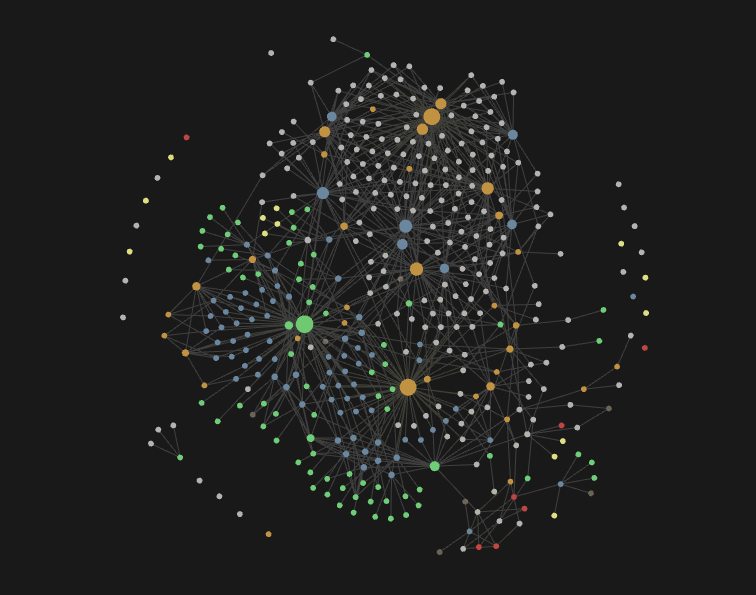
To integrate an AI agent with your Obsidian Second Brain, you're going to need the following components:
An AI Agent (most likely Claude Code)
A well-structured Obsidian Vault
An explicit set of rules for how notes should be linked
An agent access protocol (mine is linked below if you want to try it out)
A Vault index (managed by the agent so it knows what sort of files are available in the vault)
Maintenance routines
I'll detail each of these components in the sections below, but before we get into it, I want to discuss my approach.
I'm going to take a super cautious approach to this, which is probably going to annoy some people.
The reasons my previous attempts at an AI-integrated Second Brain failed were that I didn't sufficiently plan out the architecture for it.
Your vault needs to be simple to maintain; you won't. To be able to trust that the system works, your notes need to be properly linked. When you search for a keyword or topic, you need to know that everything that should surface, will - not just whatever you felt like tagging at the time. Similarly, I have a system for tracking what projects I work on each day to allow an agent to access things that "I worked on last week", for example. As soon as you miss even one link, the integrity of the whole system starts to degrade.
I'll say this again because it's important:
Build a system complex enough to contain whatever data you want to put in it, but simple enough that you will actually maintain it. Otherwise you won't.
I'd also suggest not using AI to maintain your vault... at least initially. As part of developing a system that actually worked for me, I spent a good amount of time managing it entirely myself. I manually created topics, assigned tags to every note, and linked all notes appropriately. Doing it yourself helps you really understand the procedures and find the small technical details and rules that should be followed to maintain it.
Create the routines yourself. Define the linking schemes. Learn it inside and out. If you don't completely understand it, and there aren't defined rules for how things should be handled, then introducing an AI agent into the picture is going to derail the whole system.
Once you have all the details ironed out, teach it to an AI agent using a skill or Agent.md file.
Obsidian? Did someone say Obsidian!? If you're new to this, I have a full Obsidian guide tailored towards people using it for Second Brain purposes so it should cover everything you need to get started. You can also read my full Claude Code Guide here .
1. The Agent.
Any AI agent with command-line access and some way to program routines into it will suffice for this setup. For most people, that's Claude code. Claude Cowork and Claude.ai (chat) won't work since they don't have non-sandboxed shell access. In theory, you could get around this with Cowork if you set up your vault in the same folder that you're running in Cowork, but Claude Code is just easier to use from anywhere. Plus, you have the option of editing skills directly in the chat, which doesn't work in Cowork either.
I haven't tried this with Codex or OpenClaw, but there's no reason I can see why it wouldn't work.
2. Vault Structure.
Firstly, folders don't matter to Obsidian. Obsidian shows you your vault in a folder hierarchy since that's how it physically exists on disc, and it's a format we're used to navigating. However, Obsidian's graph model doesn't take that into account when indexing the connections between notes. It's purely visual.
However, the vault structure is still important for the Agent using the Obsidian CLI (we'll get onto that more later). They are relevant for:
Scoping. The Obsidian folders command returns the entire vault folder hierarchy, allowing the agent to quickly understand the structure and contents of the vault
Performance efficiency. Commands such as search can be restricted to specific folders to dramatically improve their efficiency.
Safety. If you're experimenting with implementing a new AI routine, you can effectively sandbox commands that the agent runs by telling it to specify a folder path it should act upon. Since agents often perform a lot of bulk operations, this can restrict which files they are applied to in case something goes wrong.
The folder structure I've had the most success with is just creating a few top-level folders for different categories of note, but you could also group by project or domain if that suits you better. All of my folders are numbered for better organisation. Remember, this is just the setup that works for me:
00 Daily Notes
10 Raw - for any webpages, podcast transcripts or other source material. Nothing in here is ever edited directly.
20 Notes - for any polished, concise notes. Not raw articles and guides, but clean notes ready to be used.
30 Projects - I create a new page for each project I'm working on. In the sources field, I link to raw material and notes that are important for this project.
97 Topics - my folder of topic pages - more on that below
98 Assets - the folder I have set up to contain all of the media files in my vault. Some people prefer to have these alongside the relevant note; I prefer to have mine all in one place
99-Templates - I have a template set up for each of my vault folders. They specify the exact frontmatter fields that I want to be using every time.
I do have some additional folders 40-, 50, 60-, etc... but this is the core setup that I'd recommend. Expand to suit your needs.
Sub-folder organisation
For sub-folders, I use a few different schemes depending on the folder. I don't group semantically, but more systematically so that I can find things easily when I need them.
Archive + Current folders
Year > Date folders
Sub-topic folders (if you really insist on semantic groupings)
Generally, I'd recommend staying away from anything dynamic where you might have to move notes between folders frequently, so folders such as 'not-started', 'in-progress', and 'completed' are not advised. We'll discuss a better approach for that in a minute.
3. Linking Scheme.
Being consistent with your frontmatter is important to keep your Second Brain alive and well. If you start missing fields and forgetting to add tags, the quality of the system will start to degrade. Again, the best approach is to create a system complex enough to organise your notes in the way that works for you but simple enough that you'll actually use it. Finding this balance takes a bit of practice. Setting up folder templates using the Templater plugin (not sponsored) is an easy way to ensure that the right fields are already waiting for you when you do create a new note.
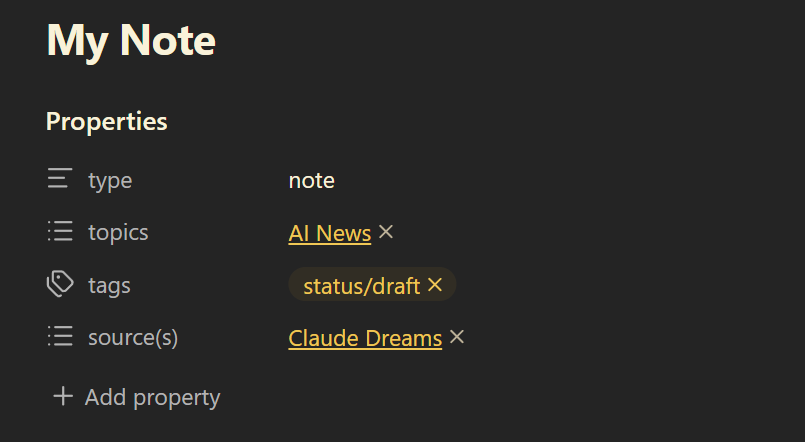
With this in mind, here's the setup I use for the front matter for all of my notes after a lot of trial and error. These 4 fields should be added to every note in your vault.
Types
Types align with the high-level folders. They are static and describe the type of note it is. I use a '/' to create sub-types that refer to the folder the note is in e.g.
- Raw/Article
- Raw/Podcast
- Raw/Research-Paper
- Topic
- Notes
- Template
- Other
Topics
Topics are generally static but the set of topics may grow and change over time. A note on the topic of 'security' will always be about security, but you might find that when you accrue hundreds of notes tagged to 'security', it's time to break that down into subtopics.
That can be messy, but here's one approach to simplifying that process:
Create a folder containing topic pages. This keeps them all organised and in one place. Each topic page
Is just a blank placeholder page. Sure, you can add general information about the topic if you want, but I just leave all of mine blank. (This also ensures that they show up in the graph view, which is a super quick way to make it look 10 times cooler.)
Links to a parent topic. I create a frontmatter item called 'Up' which points up the topic hierarchy (the name helps me remember which direction this should go). This means I could have one topic for Security, then a few sub-topics for data breaches, AI security, and security tips, which all point upward towards the parent category.
When I notice that a topic becomes too saturated to be meaningful, I simply ask the agent to:
Find all notes tagged to that topic,
Define some new sub-topics where there is a good number of notes that would go into them,
Create the new topic page using the existing ones as a template,
Assign the new sub-topics to point to the parent ones
Go through all of those notes and either leave it with the original topic or assign it to one of the new sub-topics as appropriate.
I did this recently with my AI-news topic page. It was getting too saturated so Claude created an AI-companies sub-topic with a few company-specific pages as sub-sub-topics, and a product-releases topic. It then shuffled everything around to where it now fits best.
Side note. This is a routine that I have built, understood and performed myself so I can confidently write an AI agent skill to automate the process without breaking my setup, leaving notes without topics, topics that don't exist, or multiple similar topics.
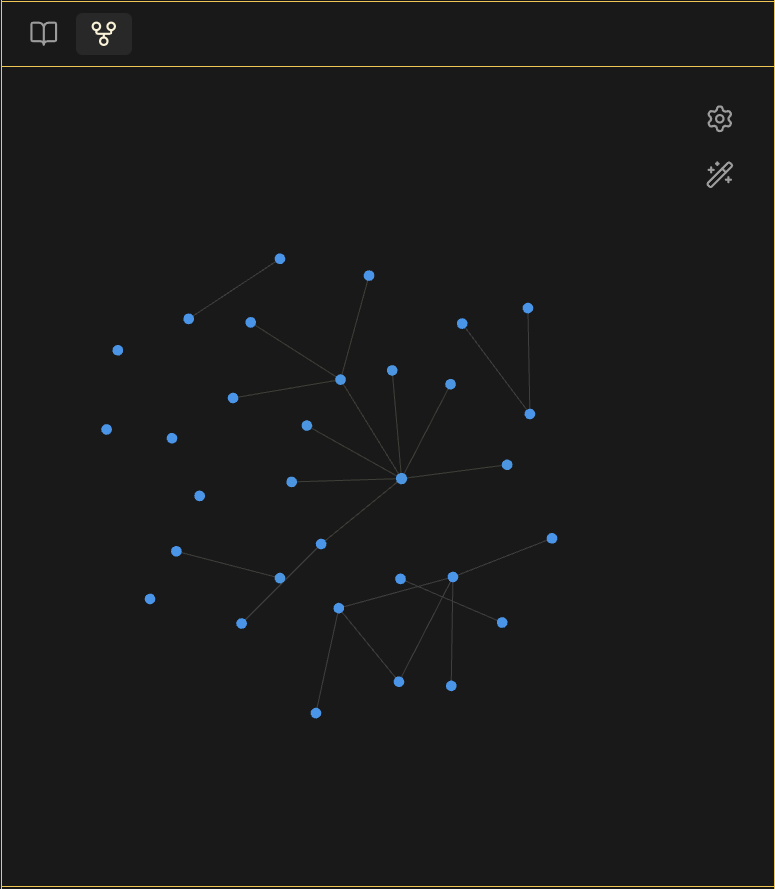
I like to create a group in my graph view to colour all topic pages the same. This way, I can easily tell how my topics link together and quickly see when a topic is becoming oversaturated. If you set up all of your topic pages to have type: topic in the frontmatter, you can then filter for:
["type":topic]
in the graph view, to quickly see just your topic pages and how they link together. It will look something like this:
As a general rule, I allow a note to have multiple topics if they are either disconnected or if they are sisters but not parents. E.g. I could have a 'design-tools' topic and a 'product releases' topic, but I'm not going to have 'AI News' and 'AI Product releases' when one is a parent of the other.
That's just a personal preference, but it helps to keep things tidy. It's part of the system I've built that works for me. You might be keen to jump in and automate, but there will be many small things like this that you need to figure out before you let AI loose on it. Use it yourself, then teach AI to use it.
Tags
Tags are for temporary states for a note. Is it an article that you're still drafting? 'status/draft'. Finished the piece you're working on and just hit publish? 'status/published'. I create a temporary tag 'the-clique' for notes I save to my vault that I want to use in this week's newsletter. (which you should totally go subscribe to). After I write my newsletter, I delete it from anything I've used so I've got a blank canvas ready for next week.
Sources
The last of the core frontmatter fields is the 'Sources' field. In it, I add a link to any note that acts as a source for the current one. For example, an article I write might link to a few of my "Notes" (from my notes folder). Each of my notes may link to a raw file where the notes were compiled from. When I write social media posts about an article I've written, the source of that post is my article note.
This gives my links direction (top down), so I'm not adding random links between items. It's clear which of the two items that are related should have a link to the other. I also find that doing it this way around is more practical since I don't find myself going back to old notes to add new links in. I just add new links as notes are created.
Further Linking
Beyond frontmatter, I like to make use of Wikilinks (e.g. note name ) in the body text of each note. While main note sources go in the front matter, if I reference a different note or idea while writing, I make sure to link to it. You can quickly add a link by typing [[ and typing the name of (or some keywords found in) the desired note. Hit enter, and it'll autocomplete. You now have a link between two specific ideas.
Beyond these four main frontmatter fields, I'll add ad-hoc fields for different types of notes. Raw source file notes all get a 'url' field to link back to the original webpage where I found them. Some will get a date created/modified, others get an 'author' field. As long as you complete the core set of fields on EVERY note, the rest is up to you.
4. The Agent Access Protocol - Obsidian-CLI skill.
This may be an unpopular opinion, but I do almost all of my Claude Code work in a single Folder. I have all of my frequently used skills set up there and a CLAUDE.md file that suits my needs.
To work with Obsidian, I have an Obsidian-CLI skill that I built to help the agent interact with Obsidian through the command line. This proves much more effective than standard file operations and can make use of Obsidian's internal file index and search features.
To use this skill, I'll generally prompt something along the lines of: "You can find the source material in my vault", or "Read this research I found on __ and write a set of clean, compiled notes from it. You can find everything you need in my vault."
Generally, after one mention of the word vault, Claude knows where to read and write new files for the rest of the session. I don't need to manually upload files every time, andI don't even need to get the file name right due to the search feature.
You can find the specific skill I've developed here. Feel free to drop it into your setup and test it out. I'm sure it could use some improvements, but it seems to work fairly well for me.
It's designed to function more like a driver connecting the agent to the CLI, so it deliberately isn't programmed with any details of vault architectures, multi-step routines or fancy workflows. It just tells the agent how to perform basic tasks like search, file reads and modification.
It's also worth updating this periodically. The Obsidian CLI is still pretty new and updated frequently, so things do change slightly over time. You can always ask Claude to review the docs and update your skill.
5. Agent Vault Indexing.
To really start to see the benefits of this, you'll have to make some edits to your Claude.md file. The first thing I'd recommend once your vault and the access protocol are in place, have the agent perform an initial assessment of your vault.
Just let it explore the folders, see what's in them, and see what key files you might have that it might find useful in the future. Specifically for me, these are context files, brand style guides, and my current work goals and focus. These are things that the agent may want to open and refer to for common everyday tasks. Tell it this. Have it write it to its memory file.
You may want to rerun this process periodically to refresh and index any new files.
6. Other Agent Workflows.
I'll be honest, what we've discussed so far is pretty much my core setup. I've tried writing additional skill-based workflows that sit on top of the CLI skill before, and I just find them too brittle and restrictive.
The agent has all of the tools it needs here to perform pretty much any maintenance or admin task you can think of. I don't use a dedicated skill for these; I just describe them when I need them. I haven't yet found a complex task that I repeat often enough to warrant building a skill-based workflow for it.
That said, here are some use cases to try out.
Content Ingestion \& Bulk Operations
Sometimes, no matter how hard I try, I forget to add topics to my notes. With proper instruction, Claude can do this, no problem. It can read your topic structure from the topic-page folder, it can read each note to determine which topic it should have, and it can write that topic to the file. I'll specify the system and linking rules that I've learned from managing the vault myself so that Claude leaves everything intact.
I also use an agent to automate a lot of bulk operations, such as refactoring or removing tags, archiving old files, tidying up my notes, and removing duplicates.
Daily Briefings
This isn't something I use frequently, but rather something I experiment with from time to time. Daily briefings written straight to my daily note. You can set a scheduled task in Claude to check the weather forecast, find some recent news stories, and anything else you might want to read first thing in the morning. You can also have a separate vault with all of your tasks and to-do lists in, and have a morning briefing of everything you need to do today. You can read about my experiment with this here .
One thing I've been experimenting with lately
The Obsidian CLI has a developer suite that I've only recently started poking around with, and it looks quite exciting. We're talking things like executing JavaScript inside Obsidian's runtime, querying the live UI, taking screenshots of the Obsidian window, and triggering any command in the command palette programmatically.
In practice, this means I can ask Claude to find and open a note directly in a new tab in Obsidian. It just pops up in front of me without me having to search for it. The screenshot feature is interesting, too. You could have Claude open and screenshot your Excellidraw sketches and turn them into a diagram or even perform the workflow being described. Hand-drawn diagram to action in a single prompt.
I'm still figuring out where this fits into my day-to-day setup, but it's been fun to play around with.
Learning with a Second Brain.
One of the best use cases of a system like this, and where it sort of gets its name from, is the ability to learn from your notes. I store the podcasts I listen to, the articles I'm reading, what I'm working on, my project updates, my daily logs, and reflections. My second brain has everything pertaining to my work and interests. We can use an AI agent to help us connect ideas and spot patterns.
Even just asking it to explore your Second Brain will lead to some interesting results.
"You have access to my second brain. I store all of my notes pertaining to my work in here, and they are all linked together. Read through everything. Look at the connections, topics, and links between them..."
... What can I learn from this?
... Give me some suggestions for...?
... What projects should I work on?
... What are my next steps on this project?
... What patterns do you notice?
... update my CLAUDE.MD file with whatever you can learn about me
Give it a try; you might be surprised what it comes up with.
Even the everyday tasks are so much quicker.
One of the most frequent tasks I'll have Claude run is conducting a research report. Often, I'll already have some brief notes on a topic that sparked my interest, and I can just direct Claude to it, have it research, and write the report straight to my vault. No more worrying about where it's writing files to, or what format it's going to be in. It's already topic-tagged, linked to my original note, status set to 'to-read,' and just sat there waiting for me.
I never have to drag and drop files into chat because Claude already has access to whatever it needs. I don't even have to get the specific name right. "I have some notes on X in my vault" is usually sufficient for it to find it. I don't have to give it style guides for specific pieces of work - it'll just find what it needs. I don't have to dig through my files to find examples to provide as a reference because Claude already has them.
Starting to see a pattern yet? This setup has completely changed the way I work.
It's been growing with me, too. I can add new skills for whatever workflows I might need, and it can make use of the existing infrastructure. The more data you add to it, the more powerful of an asset it becomes.
And it all starts with getting the fundamentals right.